
Millions of pages sit completely invisible in Google not because of bad content, poor keywords, or weak backlinks but because of
one fixable technical issue their owners never find.
You published the article. You did the keyword research. The page looks professional and reads well. But weeks go by, rankings never
come, and when you search Google for your own content it simply is not there.
The answer is almost always hiding inside two sections of Google Search Console that most site owners open once and never fully
understand: the Indexing report and the Enhancements section. This guide will show you exactly how to read them, what every status
means, and how to fix every error step by step.
TL;DR — What You Will Learn in This Guide
- How to read and act on every indexing status in the Pages report (not just the basics)
- The 7 real causes of ‘Crawled – Currently Not Indexed’ and a step-by-step fix checklist
- Every Enhancement type in GSC explained with specific error fixes and rich result eligibility rules
- How to use URL Inspection, Sitemaps, Core Web Vitals, and Security reports as one unified system
- Advanced GSC integrations: GA4, Looker Studio, and IndexNow the tool most competitors ignore entirely
What Is Google Search Console in 2026? And Why It Matters More Than Ever
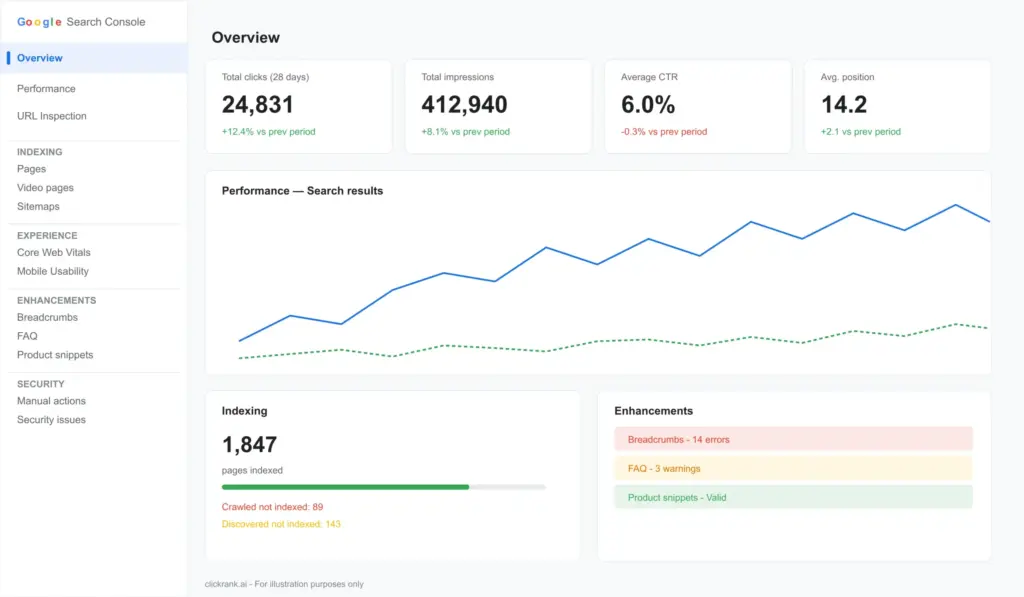
Google Search Console (GSC) is Google’s free, official tool that gives you direct visibility into how Googlebot sees, crawls, and indexes your website. Unlike Google Analytics, which measures what users do on your site, GSC measures what Google does and in 2026, that distinction is more important than it has ever been.
Three forces have made GSC indispensable in the current search landscape:
AI Overviews require machine-readable content.
With Google’s AI-generated summaries now appearing above organic results for hundreds of millions of queries, structured data errors visible only in GSC’s Enhancements tab can quietly exclude your content from consideration.
Crawl efficiency now impacts AI indexing.
Google’s crawlers are increasingly selective. Pages with crawl budget waste, soft 404 patterns, or weak internal linking get deprioritized in the indexing queue. GSC is the only place you can see this data directly.
Zero-click SERPs demand rich results.
Featured snippets, FAQ accordions, product panels, and video carousels now dominate the above-the-fold SERP. All of these are driven by structured data and GSC’s Enhancements tab is your quality control dashboard for every schema type you deploy.
PRACTITIONER NOTE: In my experience auditing 200+ websites, GSC data reveals indexing and schema issues that no third-party tool not catches with the same precision. Those tools crawl your site the way a visitor would. GSC shows you the site through Google’s eyes.
GSC vs Google Analytics: The One-Line Distinction
Google Search Console = what Google does with your site. Google Analytics = what users do on your site. You need both, but for SEO, GSC is primary.
The GSC Dashboard: Five Core Sections
| Section | What It Shows | Primary Use |
| Performance | Clicks, impressions, CTR, average position per query/page | Keyword and CTR optimization |
| Indexing | Which pages are indexed, excluded, or erroring | Crawl health and visibility |
| Experience | Core Web Vitals, Mobile Usability, HTTPS | Page experience signals |
| Enhancements | Structured data quality per schema type | Rich results eligibility |
| Shopping | Product feed and merchant listing status | E-commerce visibility |
Note: The Shopping tab appears in GSC only when Google Merchant Center is linked to your property or when Product structured data is detected on your site.
The Indexing Report: Your Site’s Complete Visibility Scorecard
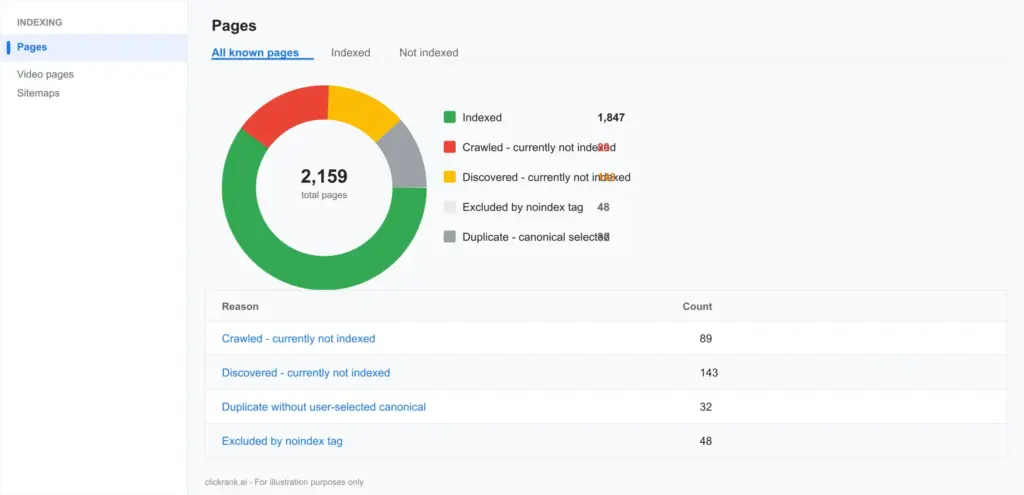
The Indexing section previously called the Index Coverage report is the nerve centre of GSC. It tells you precisely which pages Google has indexed, which it has rejected, and why. Understanding every status in this report is non-negotiable for any serious SEO.
Indexed Pages: What the Number Actually Means
The ‘Indexed’ count shows pages currently in Google’s index. But a critical point most guides skip: indexed does not mean ranking. A page can be indexed and sitting at position 94 for every query it touches. The indexed count is a floor, not a ceiling.
What you want to track over time is the ratio of indexed pages to total crawled pages. A healthy site typically sees 85–95% of its intentionally public pages indexed. If that ratio drops, something systemic is wrong new content not being indexed fast enough, recent pages being excluded, or a crawl budget problem.
Non-Indexed Pages: The 6 Statuses You Must Know
This is where most SEOs stop reading the GSC documentation. There are six distinct non-indexed statuses, and each requires a completely different fix. Treating them all the same is one of the most expensive mistakes in technical SEO.
| Status | What It Means | Priority | Correct Fix |
| Crawled – Currently Not Indexed | Google visited and evaluated the page but decided not to index it | CRITICAL | Improve content quality, E-E-A-T, and search intent alignment |
| Discovered – Currently Not Indexed | Google found the URL but hasn’t visited it yet | HIGH | Strengthen internal linking, improve crawl budget allocation |
| Duplicate – Not Selected as Canonical | Google found duplicate content and chose a different canonical | HIGH | Audit and fix canonical tags; consolidate duplicate pages |
| Excluded by ‘noindex’ Tag | A noindex directive is present on the page | MEDIUM | Verify intentional — remove tag if page should be indexed |
| Blocked by robots.txt | Googlebot is disallowed from crawling the URL | MEDIUM | Audit robots.txt; unblock if page should be indexed |
| 404 / Soft 404 | Page not found or thin page masquerading as live | MEDIUM | Redirect to relevant page or improve content to pass threshold |
Fixing ‘Crawled – Currently Not Indexed’: The #1 GSC Pain Point
WHY THIS MATTERS: ‘Crawled – Currently Not Indexed’ is the most misdiagnosed status in all of technical SEO. Most guides tell you to ‘improve content quality’ and stop there. That is dangerously incomplete advice. In my experience, this status has seven distinct root causes and the fix for each is entirely different.
The 7 Real Causes — And Why Generic Advice Fails
Cause 1: Search Intent Mismatch.
This is the #1 cause in my audit experience, yet it is almost never mentioned. Google evaluates whether your page satisfies the dominant intent for the queries it could rank for. A 3,000-word informational guide targeting a keyword whose SERP is dominated by product pages will often sit in ‘Crawled – Not Indexed’ no matter how well-written it is. The fix is not to rewrite it is to reframe the content’s angle to match what Google’s SERP is telling you users want.
Cause 2: Thin Perceived Value.
Google compares your page against already-indexed pages covering the same topic. If your page adds nothing substantively new no unique data, no first-hand experience, no depth competitors lack Googlebot’s quality assessors will deprioritize it. Word count alone does not cure this. A 4,000-word article made of padding loses to a 900-word article containing a genuine case study or original analysis.
Cause 3: Weak E-E-A-T Signals.
For YMYL topics (finance, health, legal, safety), Google applies heightened scrutiny. Pages without author credentials, without citations to authoritative primary sources, or without a traceable entity behind the site are frequently excluded. Adding a real author bio with a LinkedIn URL, citing .gov or .edu sources, and having a clear About page with business credentials can shift this status for YMYL content.
Cause 4: Crawl Budget Dilution.
If your site has thousands of low-value pages paginated archives, faceted navigation URLs, parameter-based duplicates Googlebot allocates its crawl budget across all of them. Important new pages get crawled less frequently, and the indexing queue grows long. The fix is to consolidate, noindex, or canonicalize thin pages to free up budget for your priority content.
Cause 5: Weak Internal Link Equity.
Pages sitting at the edge of your internal link graph accessible only through deep pagination or not linked from any authority page are treated as low-priority by Googlebot’s indexing algorithm. Every new page you publish should receive at least one contextual internal link from a page that is already indexed and receives some organic traffic.
Cause 6: Duplicate Content Signals.
Even without an explicit duplicate status, pages with substantial content overlap with other indexed pages on your own domain can trigger ‘Crawled – Not Indexed.’ This is particularly common on e-commerce sites with product variant pages or location-based service pages that share 80%+ of their content. The fix is to differentiate the content meaningfully or consolidate variants under a canonical.
Cause 7: Recent Domain or Page History Issues.
Pages on domains with a history of spam, thin content, or manual actions even if the current content is excellent — may have a temporary trust deficit. Similarly, pages that were previously noindexed, redirected, and then re-published sometimes carry a stale negative signal. Patience combined with active internal linking and external link acquisition is the fix here.
The Step-by-Step Fix Checklist
Run through these steps in order. Do not skip to step 5 (requesting indexing) before completing steps 1–4. Requesting indexing on a page with an unresolved root cause is wasted quota.
- Open the URL in URL Inspection Tool. Note the last crawl date, canonical selected by Google, and any enhancement warnings. Screenshot for your records.
- Compare your page against the top 5 indexed results for its target query. Is your content format matching the dominant SERP intent? Is your depth competitive? Does your page have data, examples, or experience signals that competitors lack?
- Audit E-E-A-T signals. Is there a named author with credentials? Are external sources cited? Does the page link to authoritative references? For YMYL topics, these are near-mandatory.
- Check internal link equity. Search your site for the page’s target topic. Are there 2–5 existing indexed pages you could add a contextual internal link from? Add them.
- Validate structured data. Use the Rich Results Test to confirm no schema errors exist. Fix any warnings — they can contribute to quality assessment.
- If all above are addressed, use URL Inspection > Request Indexing. Note: Google processes ~100 requests per property per day. Use this quota wisely.
- Wait 5–10 days and re-inspect. If still not indexed, revisit step 2 — the intent or quality gap has not been resolved.
Real-World Case Study: From ‘Crawled – Not Indexed’ to Position 4 in 19 Days
CASE STUDY: A SaaS client had a service page sitting in ‘Crawled – Currently Not Indexed’ for 11 weeks. The content was 2,100 words and technically accurate. Root cause diagnosis: intent mismatch (page was informational; SERP was transactional) + zero internal links from indexed pages. Fix applied: restructured page to transactional format with pricing, CTA, and a comparison table; added 4 contextual internal links from indexed blog posts. Result: indexed within 6 days; ranking at position 4 for primary keyword by day 19. Traffic increase: +340% month-over-month.
The URL Inspection Tool: Your Page-Level Diagnostic Engine
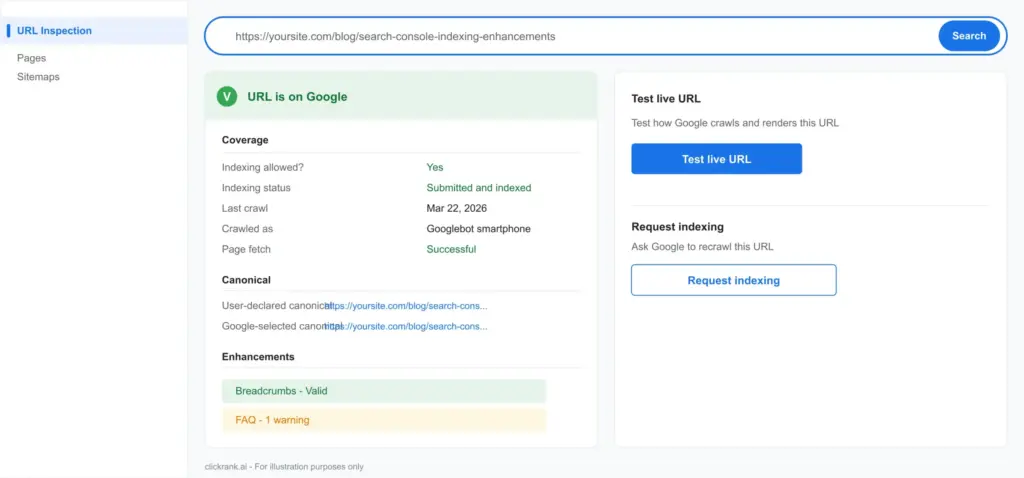
The URL Inspection Tool is the most underused power feature in GSC. Most SEOs use it only to request indexing. That is like buying a full medical diagnostic scanner and using it only as a thermometer.
What It Actually Tells You
| Data Point | What It Reveals | Action If Abnormal |
| Indexing status | Whether the specific URL is indexed | Investigate non-indexed reason |
| Last crawl date | When Googlebot last visited this URL | If >30 days: check crawl budget and internal links |
| Crawl allowed? | Whether robots.txt blocks Googlebot | Remove block if page should be indexed |
| Page fetch status | Whether Google can load the page successfully | Fix server errors or redirect chains |
| Canonical URL | Which URL Google considers the canonical | Fix if different from your intended canonical |
| Mobile usability | Pass/fail status for mobile rendering | Fix errors listed in the Enhancement section |
| Structured data | Schema types detected and any errors | Fix errors to maintain rich result eligibility |
| AMP status | If AMP is implemented, whether it is valid | Fix AMP errors or consider removing AMP entirely |
Reading Canonical Conflicts — The Silent Ranking Killer
One of the most valuable and overlooked data points is the ‘Google-selected canonical’ field. If this URL differs from the ‘User-declared canonical,’ Google is overriding your canonical tag. This means:
- Your intended canonical is not being respected
- Link equity may be flowing to the wrong URL
- Rankings may be split across two versions of the same content
Common causes: the page Google selects as canonical typically has stronger internal link equity, a shorter URL, or more backlinks. Fix by consolidating internal links to your intended canonical URL and ensuring the canonical tag is consistent across all page versions (HTTP/HTTPS, www/non-www, trailing slash/no trailing slash).
When to Request Indexing — And When NOT To
GSC allows approximately 10 indexing requests per property per day, with a longer-term quota system. Burning this quota carelessly is one of the most common SEO operational mistakes.
Request indexing when: you publish new content; you make significant changes to an existing page (not minor copy edits); you fix a confirmed indexing error; you add or substantially update structured data.
Do NOT request indexing when: the page has a known quality issue you haven’t fixed yet; you are doing routine publishing at scale (submit a sitemap instead); you are testing use the Live Test feature instead.
Sitemaps in Search Console: Accelerating and Diagnosing Indexing
A sitemap is not just a file you submit once and forget. In GSC, the Sitemaps report is a live diagnostic tool that tells you exactly how much of your submitted content Google is choosing to index and a large gap between submitted and indexed is one of the clearest signals of a site-wide content quality problem.
How to Submit a Sitemap
- In GSC, go to Indexing > Sitemaps
- Enter the full URL of your sitemap (e.g., https://yoursite.com/sitemap.xml)
- Click Submit. GSC will fetch and parse it immediately.
- Refresh after 24 hours to see the submitted vs indexed ratio.
Diagnosing the Submitted vs Indexed Ratio
This ratio is one of the most informative signals in all of GSC, and almost no competitor guides explain it properly:
| Ratio | What It Signals | Action |
| 90–100% indexed | Healthy Google trusts your content | Maintain content quality; monitor monthly |
| 70–89% indexed | Minor quality or duplication issues | Audit non-indexed URLs; check for thin content clusters |
| 50–69% indexed | Significant quality or crawl budget issue | Content audit required; consolidate or noindex weak pages |
| Below 50% indexed | Systemic content quality problem or crawl budget crisis | Full technical and content audit urgently needed |
Common Sitemap Errors and How to Fix Them
- URL not found (404): Pages deleted or moved without redirect. Fix: 301 redirect to correct URL or remove from sitemap.
- URL blocked by robots.txt: Sitemap includes URLs your robots.txt disallows. Fix: remove from sitemap or update robots.txt.
- URL is a redirect: Sitemap points to a URL that redirects elsewhere. Fix: update sitemap to final destination URL.
- Submitted URL returns non-200 response: Server errors. Fix: resolve server configuration issues.
IndexNow: The Underused Companion to GSC Sitemaps
IndexNow is an open protocol supported by Microsoft Bing, Yandex, and increasingly by Google that lets you push new and updated URLs to search engines in real time, the moment content is published. Most SEOs treat it as a Bing-only feature. It is not. Combining IndexNow pings with GSC sitemap submission creates a double-coverage approach that consistently improves indexing speed for new content.
To implement IndexNow: generate an API key, place a verification file at your domain root, and send a POST request to api.indexnow.org with your updated URLs. Most modern CMS plugins (Yoast, Rank Math, Jetpack) have IndexNow built in. Enable it. The incremental crawl acceleration is measurable, especially for high-volume publishing operations.
The Enhancements Section: Your Rich Results Command Centre
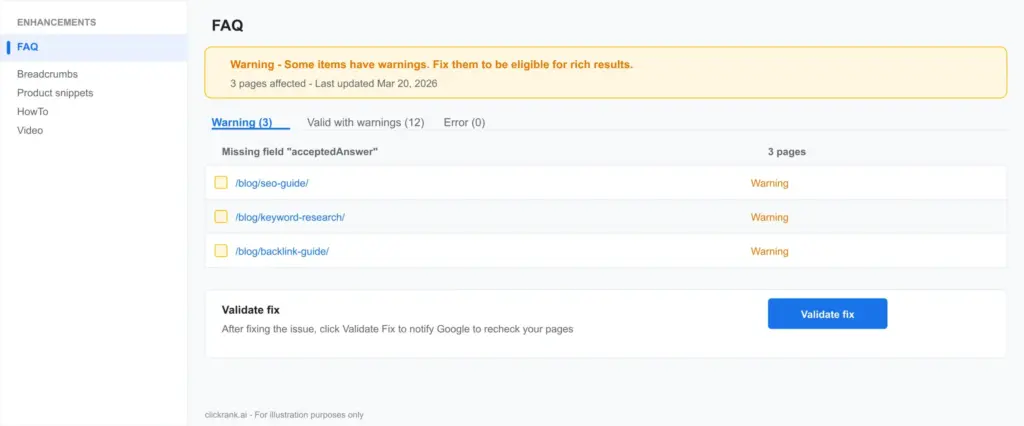
The Enhancements section is where GSC transitions from indexing diagnostics to search appearance optimization. It tracks how Google is processing every structured data type implemented on your site and whether your pages qualify for the rich results that dominate the modern SERP.
Understanding which Enhancements reports appear in your GSC account is itself diagnostic: you only see reports for schema types Google has detected on your site. If you expect to see a Product report but it is absent, Google has not found valid Product markup anywhere on your domain.
Breadcrumbs Schema: Site Structure Made Machine-Readable
Breadcrumb schema (schema.org/BreadcrumbList) tells Google your site’s hierarchical structure. When implemented correctly, Google displays the breadcrumb path in the SERP instead of the raw URL — a proven CTR improvement, particularly on mobile where URL length is truncated.
| Common Error | Cause | Fix |
| Missing field ‘name’ | BreadcrumbList item lacks a name property | Add name to every ListItem in the chain |
| Missing field ‘item’ | ListItem lacks the URL (item) property | Add item with full absolute URL to each step |
| Invalid URL in ‘item’ | Relative URL or malformed URL used | Use full absolute URLs (https://…) |
| Breadcrumb chain broken | Items out of order or missing intermediate steps | Ensure position values are sequential starting at 1 |
FAQ Schema: High Reward, High Risk
FAQ schema (schema.org/FAQPage) can expand your SERP listing into an accordion of questions and answers, significantly increasing your visual footprint and CTR. However, Google has tightened eligibility rules substantially.
What qualifies: genuine questions with substantive answers that directly help users; content that matches the actual page content (Google cross-references the schema against the visible text); pages that are not primarily promotional.
What gets rejected: FAQs used as keyword stuffing; questions with one-sentence non-answers; pages where the FAQ schema content differs materially from the visible page content; pages that use FAQ schema on every page site-wide as a SERP manipulation tactic.
PRACTITIONER TIP: Do not implement FAQ schema on every page. Google has manually reduced the SERP display of sites that treat FAQ schema as a universal CTR hack. Reserve it for pages where users genuinely have follow-up questions deep guides, product pages with specifications, service pages with pricing questions.
Product Schema: The E-Commerce Rich Result Engine
Product schema (schema.org/Product) powers price, availability, rating, and review snippets in Google Shopping and organic SERPs. In the GSC Enhancements report, Product errors fall into three severity tiers:
Errors (blocking rich results): missing required properties like ‘name,’ ‘offers,’ or ‘price.’ Google will not show rich results for these pages until fixed.
Warnings (degraded rich results): missing recommended properties like ‘brand,’ ‘image,’ or ‘description.’ Rich results may appear but with reduced information.
Valid with warnings: technically eligible but below best-practice completeness. Competitors with complete schema implementations will have richer, more clickable SERP listings.
HowTo Schema: Voice Search and AI Overview Eligibility
HowTo schema (schema.org/HowTo) is one of the most powerful schema types for voice search and AI Overview inclusion. Google’s voice assistant and AI summaries preferentially pull structured how-to content because it maps perfectly to conversational queries (‘how do I fix X,’ ‘what are the steps to Y’).
Required properties: name (the task being accomplished), step (array of HowToStep objects with each step’s name and text). Recommended: totalTime, estimatedCost, supply, tool, image per step.
Critical: HowTo schema must mirror the actual numbered or bulleted steps visible on the page. Do not implement HowTo schema on pages where the steps are written as flowing prose — Google will reject the markup.
VideoObject Schema: The Fastest-Growing Rich Result in 2026
With Google’s video carousels appearing in an increasing proportion of SERPs — particularly for how-to, review, and tutorial queries — VideoObject schema has become a critical Enhancements priority.
Required properties: name, description, thumbnailUrl, uploadDate. For indexing eligibility (not just display): contentUrl or embedUrl must be present. Without a crawlable video URL, Google cannot index the video itself — you get no carousel inclusion.
A common and costly error: implementing VideoObject without contentUrl and wondering why the video never appears in video SERPs. The schema validates without it, but Google cannot index what it cannot fetch.
Review and Rating Schema: Compliance or Penalty
Google’s 2023–2025 review schema policy updates fundamentally changed how review markup can be used:
- First-party reviews on product pages: permitted with proper AggregateRating schema.
- Self-serving reviews on business pages: Google will not show star ratings for pages where the entity reviewed is the same entity publishing the review.
- Review aggregator sites: permitted if reviews are genuinely third-party and the site is primarily a review platform.
WARNING: Adding AggregateRating schema to your own business’s homepage or service pages to generate star ratings in your own SERP listing is a violation of Google’s structured data guidelines and will result in a manual action for ‘Structured data policy violation’ in the Security & Manual Actions section of GSC.
Sitelinks Searchbox
Sitelinks Searchbox schema enables a search box directly in your branded SERP listing a significant UX feature for large sites with strong brand search volume. Requirements: your site must already have a Sitelinks block appearing in Google Search (typically requires significant brand authority). The WebSite schema implementation must reference a working search endpoint. This is not available for most small sites do not prioritize it over core schema types.
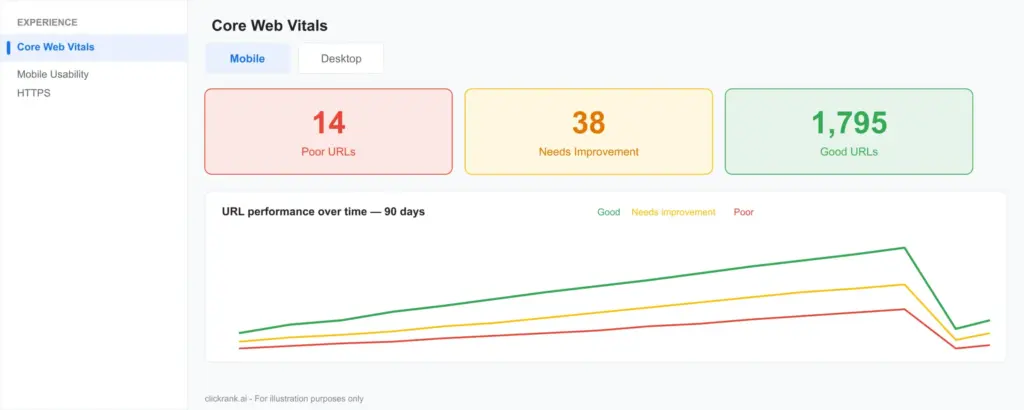
Core Web Vitals in GSC: The Experience Report That Affects Rankings
Core Web Vitals are Google’s standardized set of page experience metrics, and they are a confirmed ranking signal. The GSC Experience report shows real-user data (from the Chrome User Experience Report), not lab simulations — which means it reflects the actual experience of users on your pages, not just a Lighthouse test.
The Three Metrics: What They Actually Measure
| Metric | Full Name | What It Measures | Good Threshold | Poor Threshold |
| LCP | Largest Contentful Paint | How long until the main content element loads | Under 2.5 seconds | Over 4.0 seconds |
| INP | Interaction to Next Paint | How responsive the page is to user input (replaced FID in 2024) | Under 200ms | Over 500ms |
| CLS | Cumulative Layout Shift | How much the page layout shifts unexpectedly during load | Under 0.1 | Over 0.25 |
Reading the CWV Report Correctly
The CWV report groups URLs by similarity (URL clusters) rather than listing every individual URL. This is important: a single CWV failure might represent hundreds of pages that share a template. Fix the template, fix all of them simultaneously.
The report also separates mobile and desktop data. In 2026, mobile is primary — Google uses mobile CWV data for ranking signals. A desktop-only pass is meaningless if your mobile experience fails.
The Most Common CWV Failures and Their Specific Fixes
LCP failures — most common causes: Unoptimized hero images (use WebP format, add width/height attributes, use fetchpriority=’high’), render-blocking resources (eliminate or defer JavaScript/CSS that delays main content rendering), slow server response (TTFB over 600ms indicates a hosting or caching issue upgrade to a CDN with edge caching).
INP failures — most common causes: Long JavaScript tasks blocking the main thread (use Chrome DevTools’ Long Tasks report to identify; break tasks into smaller async chunks), third-party scripts executing synchronously (defer or async-load all third-party analytics, chat widgets, and ad scripts), unoptimized event handlers on high-frequency interactions like scroll or input.
CLS failures — most common causes: Images without explicit width and height attributes (browser cannot reserve space before image loads always specify dimensions); ads or embeds that load without reserved space; web fonts causing layout shifts (use font-display: swap; preload critical fonts; specify explicit line-height and font-size).
Mobile Usability Enhancements: Non-Negotiable in 2026
Mobile accounts for over 65% of global search traffic in 2026. Google has operated on mobile-first indexing since 2019 — meaning the mobile version of your site is the primary version Google crawls and evaluates for ranking. Any mobile usability error is a ranking liability, not just a UX issue.
The Four Most Common Mobile Usability Errors in GSC
| Error | What It Means | Specific Fix |
| Text too small to read | Font size below ~12px on mobile viewport | Set base font size to 16px; use relative units (rem/em) not px for body text |
| Clickable elements too close together | Touch targets under 48x48px or less than 8px apart | Increase button/link padding; minimum 48px height for all interactive elements |
| Content wider than screen | Horizontal scrolling required on mobile | Add ‘width=device-width, initial-scale=1’ viewport meta tag; use CSS max-width:100% on images and containers |
| Viewport not configured | Page lacks a viewport meta tag entirely | Add <meta name=’viewport’ content=’width=device-width, initial-scale=1′> to <head> |
Validating Fixes in GSC
After fixing mobile usability errors, use the specific workflow GSC provides:
- Navigate to Experience > Mobile Usability in GSC
- Click on the specific error type
- Select affected URLs and click ‘Validate Fix’
- GSC will re-crawl the affected pages within 2–5 days
- You will receive a notification email when validation completes
Do not skip validation. Without it, GSC will not remove the error from your report, and you lose the visual confirmation that your fix worked correctly.
Security & Manual Actions: Visibility Killers You Cannot Afford to Miss
Manual Actions: Immediate Ranking Impact
A manual action is a penalty applied by a Google human reviewer after a site review. Unlike algorithmic penalties (which affect you without notification), manual actions appear explicitly in GSC under Security & Manual Actions > Manual Actions. If you have a manual action, you know about it which is why checking this section must be part of every client onboarding process.
| Manual Action Type | Common Trigger | Recovery Path |
| Spammy structured data | Using schema to claim false ratings, misrepresenting content | Remove offending schema; submit reconsideration request |
| Thin content with little or no added value | Programmatic pages, scraped content, auto-generated thin articles | Consolidate or substantially rewrite affected pages; submit reconsideration |
| Unnatural links to site | Paid links, link scheme participation | Disavow toxic links; submit reconsideration with evidence |
| User-generated spam | Spammy forum posts, comment spam, profile spam | Moderate and remove spam; implement anti-spam measures; submit reconsideration |
| Cloaking or sneaky redirects | Showing different content to Googlebot vs users | Remove cloaking; ensure consistent content; submit reconsideration |
Submitting a Reconsideration Request That Actually Works
Most reconsideration requests fail not because the issues were not fixed, but because the request is written poorly. Google’s reviewers need to see three things:
- Specific acknowledgment of what was wrong not generic statements like ‘we cleaned up our links’
- Documented evidence of the fix screenshots, before/after comparisons, list of URLs corrected
- Commitment to prevention how you will ensure this does not recur
Security Issues: Hacked Sites and Malware
GSC’s Security Issues section alerts you to hacking-related problems: malware injection, phishing pages, deceptive downloads, or harmful downloads. These are separate from manual actions they indicate your site has been compromised, not that you violated a policy.
If you receive a security alert, treat it as an emergency. Google may display ‘This site may be hacked’ warnings in the SERP immediately, devastating click-through rates. The recovery process: identify and remove malware (use a security scanner like Sucuri or Wordfence), patch the vulnerability that allowed the breach, request a security review in GSC.
Advanced: GSC + GA4 + Looker Studio — Building Your SEO Command Centre
GSC in isolation shows you Google’s view of your site. GA4 shows you user behavior. Connecting them and piping the combined data into Looker Studio creates a unified SEO command centre that most competitors’ teams do not have.
Linking GSC to GA4
- In GA4, go to Admin > Property > Search Console Links
- Click ‘Link’ and select your GSC property
- Choose the web data stream to connect
- Complete the linking process
Once linked, GA4 surfaces GSC data in the ‘Search Console’ acquisition reports showing which queries drive traffic that converts. This is data you cannot get from either tool alone.
Building the Looker Studio GSC Dashboard
Connect these data sources in Looker Studio: GSC Search Analytics (clicks, impressions, CTR, position by query and page), GA4 (sessions, conversions, bounce rate by landing page), CWV data from GSC. Build these four panels as a minimum:
- Indexing health panel: trend line of indexed vs total submitted pages over 12 months. A declining ratio is your early warning system for content quality or crawl budget problems.
- CTR opportunity panel: pages with high impressions but below-average CTR (filter for impressions > 500, CTR < 3%). These pages rank but their title/meta description is underperforming fix the copy.
- Enhancement error tracker: count of structured data errors by type over time. A spike indicates a CMS update broke your schema templates.
- CWV status by page group: which page templates are failing blog posts, product pages, category pages — so you fix the root template rather than individual URLs.
GSC November 2025 Update: What Changed
Google’s November 2025 GSC update introduced two significant additions: an enhanced Coverage report with more granular ‘reason for exclusion’ data (making the ‘Crawled – Not Indexed’ diagnosis more specific you now see sub-reasons like ‘low quality signals’ and ‘insufficient unique content’) and improved indexing timeline visualization showing crawl frequency trends per page cluster. Both features are available in all GSC accounts and require no setup navigate to Indexing > Pages and look for the new filter options.
GSC for E-Commerce: Indexing at Scale
E-commerce sites face indexing challenges that informational sites rarely encounter. The combination of large product catalogs, faceted navigation, product variants, and session-based URL parameters creates crawl budget and duplicate content problems that can leave thousands of revenue-generating pages invisible to Google.
Managing Crawl Budget for Large Catalogs
Crawl budget is the number of URLs Googlebot will crawl on your site within a given time frame. For sites under 1,000 pages, crawl budget is rarely a limiting factor. For sites with 10,000+ pages, it is often the primary indexing bottleneck.
Strategies to maximize crawl budget on large e-commerce sites:
- Noindex faceted navigation URLs (e.g., /products?color=red&size=M) that are duplicates of category pages. These consume crawl budget without adding indexing value.
- Canonical all product variant URLs to the main product page unless each variant has unique, substantial content worth indexing.
- Use robots.txt to disallow session parameters (e.g., ?sessionid=, ?ref=) that create infinite URL space for Googlebot.
- Improve server response time — Googlebot factors in server speed when allocating crawl budget. Slow servers get fewer crawls per day.
Product Schema + GSC Shopping Tab
The Shopping tab in GSC provides separate reporting for product-structured data and merchant center integration. E-commerce sites should monitor both the Enhancements > Products report (organic rich results) and the Shopping > Products report (Google Shopping feed integration). Errors in either can suppress product visibility across different Google surfaces.
The 7 Most Expensive GSC Mistakes — And How to Avoid Them
| Mistake | Real-World Cost | Prevention |
| Ignoring ‘Crawled – Not Indexed’ for weeks | Revenue pages invisible to Google; competitors indexing faster | Weekly GSC review as part of standard SEO operations cadence |
| Over-requesting indexing | Burning daily quota on low-value pages; priority pages join a longer queue | Request indexing only after root cause is resolved; use sitemap submission for bulk new pages |
| Misreading canonical selection | Link equity split across URL variants; rankings diluted | Weekly spot-check of URL Inspection on key pages; fix canonical consistency |
| Implementing schema without GSC validation | Schema errors silently block rich results for months | Use Rich Results Test pre-launch; check GSC Enhancements within 48 hours of schema deployment |
| Using review schema on own business pages | Manual action for structured data spam; review stars removed sitewide | Read Google’s review snippet eligibility guidelines before implementing rating schema |
| Not linking GSC to GA4 | No conversion data by search query; CTR and ranking data siloed from business metrics | Link properties on day one of any SEO engagement |
| Treating CWV as a one-time fix | Page experience degrades as new features, plugins, and scripts are added | Monthly CWV monitoring with automated alerts for any URL cluster moving to ‘Poor’ status |
The Monthly GSC Audit Checklist
This checklist represents the minimum viable GSC monitoring cadence for a site that takes SEO seriously. Copy it into your project management tool and assign it as a recurring monthly task.
Weekly (15 minutes)
- Check Indexing > Pages for new non-indexed URLs not previously flagged
- Use URL Inspection on any new content published in the past 7 days
- Check Security & Manual Actions for any new alerts
- Review Performance report for any queries with significant CTR drops (>20% week-over-week)
Monthly (60–90 minutes)
- Analyse submitted vs indexed ratio trend in Sitemaps report
- Review all Enhancements reports for new errors or warnings
- Check CWV mobile and desktop status note any clusters moving to ‘Needs Improvement’ or ‘Poor’
- Export top 50 pages by impressions and audit for title/meta description CTR opportunities
- Review internal links to non-indexed pages add contextual links from indexed pages
- Validate any fixes submitted in the previous month via URL Inspection
Quarterly (3–4 hours)
- Full coverage report analysis identify any systemic exclusion pattern
- Audit all structured data types against current Google documentation (schema guidelines change)
- Review and update sitemap remove deleted pages, add new page clusters
- Assess crawl budget health: calculate indexed/total-pages ratio and compare to prior quarter
- Check for any new manual action types affecting your industry (follow Google Search Central blog)
Your GSC Action Plan Starting Today
Google Search Console is not a reporting tool you check occasionally when rankings drop. It is an active diagnostic and optimization system that, when used correctly, gives you a direct line to Google’s view of your site — and with it, a direct line to improving every dimension of search visibility.
The sites that win in 2026’s AI-driven, rich-result-dominated search landscape are not necessarily the ones with the most content or the most backlinks. They are the ones where the technical foundations are clean, the structured data is error-free, the indexing queue is unblocked, and the experience signals pass Google’s minimum thresholds on mobile.
All of that starts and ends in GSC. Here is what to do today:
- Open GSC and check your non-indexed page count. If more than 15% of your submitted sitemap is not indexed, you have a content quality or crawl budget problem that needs immediate attention.
- Open the Enhancements section. Count every error. Even one Product schema error can suppress rich results across your entire catalog.
- Check Security & Manual Actions. If there is any alert here, treat it as your top priority above all other SEO work.
- Run URL Inspection on your five most important revenue-driving pages. Confirm they are indexed, their canonical is correct, and their structured data is valid.
- Link GSC to GA4 if you have not already. You are flying blind on ROI without this connection.
What is the Enhancements section in Google Search Console?
The Enhancements section is GSC's structured data quality control dashboard. It shows how Google is processing each schema markup type implemented on your site, identifies errors and warnings that prevent rich result eligibility, and provides a validation workflow to confirm that fixes have been accepted. You only see Enhancements reports for schema types Google has detected on your site if a report is missing, Google has not found valid markup of that type.
How do I fix Crawled – Currently Not Indexed?
Diagnose the root cause first the seven causes are search intent mismatch, thin perceived value, weak E-E-A-T signals, crawl budget dilution, insufficient internal link equity, duplicate content signals, and historical domain issues. Fix the specific root cause, then add 2–5 contextual internal links from indexed pages to the affected page, and finally request indexing via the URL Inspection Tool. Do not request indexing before fixing the underlying issue.
What is the difference between Crawled – Not Indexed and Discovered – Not Indexed?
Crawled – Not Indexed means Googlebot visited and evaluated your page but decided not to index it this is a quality or relevance judgment. Discovered Not Indexed means Google found your URL (via sitemap or internal link) but has not yet visited it — this is typically a crawl prioritization issue. The fixes are completely different: quality improvement for the first; crawl budget optimization and stronger internal linking for the second.
How long does it take Google to index a page after requesting indexing?
After a manual indexing request via URL Inspection, most pages are processed within 1–5 days. However, Google makes no guarantee of timing. Pages with strong internal link equity and on high-authority domains are typically processed faster. If a page has not been indexed after 10 days following a request, assume the quality issue has not been fully resolved and revisit the root cause diagnosis.
Does structured data guarantee rich results?
No. Structured data makes your page eligible for rich results, but Google decides whether to display them based on: content quality and relevance, schema completeness and accuracy, compliance with Google's rich result type-specific guidelines, and overall page authority and user experience signals. A page can have perfect schema implementation and still not receive rich results if these other signals are insufficient.
How do I check if my page is indexed in Google?
Use the URL Inspection Tool in GSC for the most reliable, page-specific answer. Alternative: search Google for site:yourpage.com/specific-page-url — if it appears, it is indexed. Note that the site: operator can sometimes miss recently indexed pages; URL Inspection is always more reliable.
What causes pages to be Discovered – Currently Not Indexed?
Google has found your URL but has not prioritized crawling it. Primary causes: the URL is only accessible through deep pagination or a sitemap with no internal links pointing to it; the site has a large number of pages competing for limited crawl budget; the server has high TTFB which discourages frequent crawling; or the page was recently added to a section of the site that Googlebot visits infrequently. Fix by adding internal links from already-indexed, higher-authority pages.
What is the GSC Performance report and how does it differ from the Indexing report?
The performance report shows search traffic data—clicks, impressions, CTR, and average position for your indexed pages over time. It tells you how your indexed pages are performing in search. The Indexing report tells you which pages are indexed and which are not. You need both: Indexing to ensure pages are visible to Google, Performance to ensure visible pages are performing well.

This is such a helpful guide for those of us struggling with ‘Crawled – Currently Not Indexed.’ It’s easy to overlook technical issues that prevent indexing, but this post definitely gave me a better understanding of where to focus my efforts.